Best iPhone for Seniors in 2026 (and How to Set One Up for an Older Adult)
Published September 22, 2026
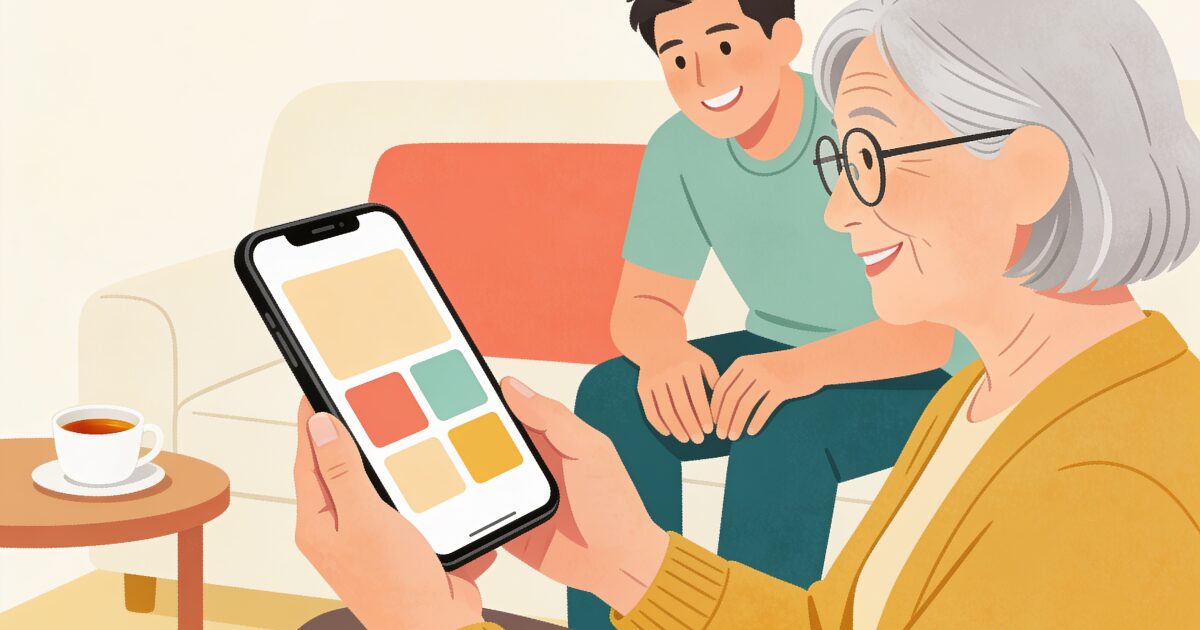
Ask which iPhone is best for a senior and the honest answer is: probably the one their family already uses. An iPhone is easy to get help with when the grandchildren can pick it up and fix it, and Apple's accessibility settings can make it as simple or as capable as the person needs.
Don't let distance keep you from knowing they're safe. Daily check-ins, anywhere in the world.
Try free for 3 daysThat said, the models differ in ways that matter for older hands and eyes: size, weight, how you unlock it, and whether there is a physical Home button. And an iPhone straight out of the box is not a senior phone. It becomes one after an hour of thoughtful setup.
This guide covers which iPhone to choose, the settings that make the biggest difference, the safety features built in, the Android alternatives if an iPhone is not the right fit, and a checklist for setting one up for a parent. If you have not yet settled on an iPhone versus a simpler senior phone, our guide to the best cell phones for seniors covers that decision.
Which iPhone is best for an older adult?
There are really three sizes to choose between, and one question about the Home button.
iPhone SE: smaller, cheaper, with a Home button
The iPhone SE is the compact option. It has a physical Home button with Touch ID, so unlocking is a matter of resting a finger, and getting back to the start is always the same press. That predictability is a real advantage for someone new to smartphones, and the smaller body suits smaller hands and pockets.
The trade-off is the screen. It is noticeably smaller than other iPhones, which means less text on screen at large sizes. Apple's newer entry-level model, the iPhone 16e, uses Face ID with no Home button, so if the Home button is the priority, buy an SE while you can find one new or refurbished, and check it will keep getting software updates for a few more years.
Standard iPhone: the larger screen
The standard iPhone (the plain numbered model each year) has a much larger screen than the SE, with Face ID instead of a Home button. You look at it and it unlocks; you swipe up from the bottom to go home. Most people adapt to this within a week, but it is a change worth practising.
The iPhone 16 and most later models add a Camera Control button on the side. It is useful for photos and easy to press by accident when picking the phone up. You can adjust what it does, or turn it off, in Settings.
Plus and Pro Max: the biggest screens
The Plus and Pro Max models have the largest screens Apple sells, which at large text sizes means far more words visible at once. For someone with low vision, that is the strongest argument for going big. Against that, they are heavier and harder to hold one-handed, and the Pro Max in particular costs a lot for features (camera systems, faster chips) that an older adult may never use. If screen size appeals, the Plus is usually the sensible choice.
The settings that make an iPhone easier
Whichever model you choose, these settings do most of the work. They all live in the Settings app, mostly under Accessibility and Display & Brightness.
- Display Zoom. Makes everything on screen larger, including icons and buttons, not just text. It is the single most helpful change for most older users.
- Larger Text and Bold Text. Text can be scaled up well beyond the default, and bold text makes it easier to read at any size.
- Increase Contrast and Reduce Transparency. Sharpen the difference between text and background.
- Louder, clearer sound. Turn up the ringer and alert volume. If the person wears hearing aids, many modern aids pair directly with the iPhone so calls stream straight into them.
- Siri. "Call Susan" or "Text David I am running late" bypasses the menus entirely. Turn on the voice or side-button shortcut and practise it together.
- Magnifier. A built-in app that turns the camera into a magnifying glass for small print on medicine bottles and menus.
- Back Tap and AssistiveTouch. Optional, but handy for someone who finds gestures difficult. They let common actions happen with a tap on the back or a single on-screen button.
Assistive Access: the iPhone's simple mode
Assistive Access, available on iOS 17 and later, deserves its own section, because it turns the iPhone into a very different device.
3-day free trial • Cancel anytime
Daily check-ins that save lives
Join thousands who never worry about being alone
When it is on, the iPhone shows only the apps you choose, as large icons or a simple list. Phone, Messages, Camera and Photos are redesigned inside Assistive Access with bigger buttons and fewer options. Messages can be limited to chosen contacts, and can offer emoji-only or video replies for someone who finds typing hard. A family member sets it up with a passcode, so the simplified layout cannot be changed by accident.
It is closer to a Jitterbug Smart4 experience than to a normal iPhone, which is why it is worth comparing with the Jitterbug phones directly. The difference is that Assistive Access sits on a full iPhone, on any carrier, and can be turned off later if the person grows more confident. For someone with memory difficulties, or who has never used a touchscreen, it can be the thing that makes an iPhone possible at all.
Safety features built in
An iPhone carries several safety tools without any extra apps. Set them up before the phone is handed over.
- Emergency SOS. Holding the side button and a volume button together calls emergency services and then texts the emergency contacts with the person's location. iPhone 14 and later can also reach emergency services by satellite when there is no signal.
- Medical ID. Set up in the Health app, it puts allergies, conditions, medications and emergency contacts on the lock screen where paramedics can see them without a passcode.
- Check In, in Messages. Lets the person tell a contact when they arrive somewhere safely. If they do not arrive, the contact is notified with the phone's location. It is a one-off, trip-based feature, useful for a drive home in the dark, and not a daily habit.
- Find My. Lets a trusted family member see where the phone is. Agree this with the person first; it is a shared choice, not a surveillance tool.
- Apple Watch fall detection. If they wear an Apple Watch, it can detect a hard fall and call for help if the person does not respond. It needs an iPhone to pair with, which makes the iPhone the foundation. Our guide to Apple Watch fall detection covers how it works and its limits.
Android alternatives: Samsung Easy Mode and Pixel
If the rest of the family uses Android, or the budget is tighter, two Android options suit older adults well.
Samsung Galaxy A series with Easy Mode. The Galaxy A phones are mid-priced with large, bright screens. Samsung's Easy Mode, built into Settings, enlarges the icons and text, simplifies the home screen, and makes the keyboard bigger. Samsung phones are sold by every carrier and every big-box store, so help and accessories are easy to find.
Google Pixel a series. The "a" models are Google's more affordable Pixels. They run a clean version of Android with excellent voice typing, a built-in Personal Safety app with emergency sharing, and long software support. The interface is less cluttered than most Android phones, which suits someone who is new to smartphones.
Both can be simplified nearly as far as an iPhone, though neither has an exact equivalent of Assistive Access. The deciding factor is usually the family: choose the platform the people who will be answering the questions already know.
iPhone SE vs standard vs Plus and Pro Max vs a simplified Samsung
| Option | Size and screen | Unlock and navigation | Best for | Watch-out |
|---|---|---|---|---|
| iPhone SE | Smallest and lightest | Home button with Touch ID | Small hands; anyone who wants a physical button to get home | Small screen at large text; newer budget iPhones drop the Home button, so check availability |
| Standard iPhone | Large screen, moderate weight | Face ID, swipe gestures | Most older adults, especially if family use iPhones | Gestures take practice; Camera Control on newer models can be pressed by mistake |
| iPhone Plus or Pro Max | Largest screen, heaviest | Face ID, swipe gestures | Low vision, or anyone who reads a lot on the phone | Heavy to hold one-handed; Pro Max costs a lot for features rarely used |
| Samsung Galaxy A with Easy Mode | Large screen, mid-priced | Fingerprint or face unlock; Easy Mode home screen | Android families; tighter budgets | No exact equivalent of Assistive Access; more pre-installed apps to tidy away |
Setup checklist for a parent
Do this together, unhurried, before the phone is handed over for good.
- Sign in with their own Apple Account, and write the password down somewhere safe that both of you can find.
- Turn on Display Zoom, Larger Text and Bold Text, then have them read a message to check it is comfortable, rather than guessing.
- Set the ringer and alert volume up and choose a ringtone they can recognise from another room.
- Fill in Medical ID with conditions, medications, allergies and emergency contacts, and turn on Show When Locked.
- Add emergency contacts and set up Emergency SOS, then practise the button hold together so it is familiar before it is needed.
- Add favourites with photos to the Phone app, so calling a son or a neighbour is a face, not a name in a list.
- Declutter the home screen. Move everything they will not use into a folder or off the first page. Phone, Messages, Camera, Photos and one or two chosen apps is plenty.
- Consider Assistive Access if a full home screen is still too much. It can be turned on later without starting again.
- Set up Find My and Check In if they want them, and talk through what each does.
- Write down the basics on a card: how to answer, how to hang up, how to call for help. Then answer the same question kindly as many times as it takes.
For the apps worth adding once the basics are comfortable, our guide to the best apps for seniors has suggestions, and our cell phone plans guide covers pairing the phone with a plan that fits a light user.
An iPhone protects the moment, but not the day
A well set-up iPhone is one of the most capable safety tools an older adult can own. Emergency SOS, Medical ID, Check In and Find My all help in the moment something goes wrong, and paired with an Apple Watch it can even notice a fall.
What it does not do is notice a quiet day. Check In is built for a journey, not for every morning. Find My shows where the phone is, not whether its owner is up and about. If someone is unwell in bed, or has fallen out of the watch's reach, the phone waits patiently on the side table and nobody is expecting to hear from them.
A daily check-in fills that gap. Each morning the person gets a notification and taps once to confirm they are okay. If they do not, the people they chose are alerted automatically by text, email and phone call. If they wear an Apple Watch, the check-in can happen on its own while the watch is worn. You can see how the Apple Watch check-in app works alongside whichever iPhone you choose.
Get the free Living Alone Safety Checklist
The home setup, daily habits, and emergency info that keep people living alone safe, in one email you can act on this week.
Please complete the verification above.
Check your inbox
Your safety checklist is on the way to .
Frequently asked questions
RATED 5.0 ON THE APP STORE
Never Wonder "Are They Okay?" Again
Daily check-ins with automatic alerts to your loved ones if you ever need help.
"I was skeptical at first, but after my neighbor was found 3 days after a fall, I signed up immediately. Now my daughter knows I'm okay every single day."
— Margaret R., 72, living independently
Related Articles
Best Cell Phones for Seniors in 2026: How to Choose the Right One
Simplified senior phone or a regular smartphone with the right settings? Here's a plain guide to cho...
Best Flip Phones for Seniors in 2026: Simple, Loud, and Built to Last
A good flip phone gives an older adult real buttons, a battery that lasts for days, and nothing to t...
Best Cell Phone Plans for Seniors in 2026: 55+ Plans, Prepaid, and What to Check
Most older adults use far less data than the average plan assumes, so the best phone plan for a seni...
Best Mobile Phones for the Elderly in the UK (2026): Big Buttons, Simple Smartphones, and What to Check
Doro or Nokia, big buttons or a simplified smartphone, pay-as-you-go or SIM-only? A plain UK guide t...