Safety on your wrist. SOS & auto check-ins.
AssureOkay is a daily safety check-in app with an Apple Watch app that lets you check in from your wrist, trigger an SOS, and check in automatically through Apple Health.
Tap the SOS button to alert your emergency contacts. Or just wear your watch and let AssureOkay check you in automatically through Apple Health.
How It Works
Three simple steps to turn your Apple Watch into a personal safety device
Install on your watch
AssureOkay's Apple Watch app installs automatically when you add the iPhone app. Open it once on your watch and you're set up.
Add the complication
Pin the AssureOkay SOS complication to your favourite watch face. One tap from anywhere, plus more background runtime so auto check-ins and SOS sync stay reliable.
Just wear it
Activity from Apple Health confirms you're up and about, which counts as a check-in. No taps required.
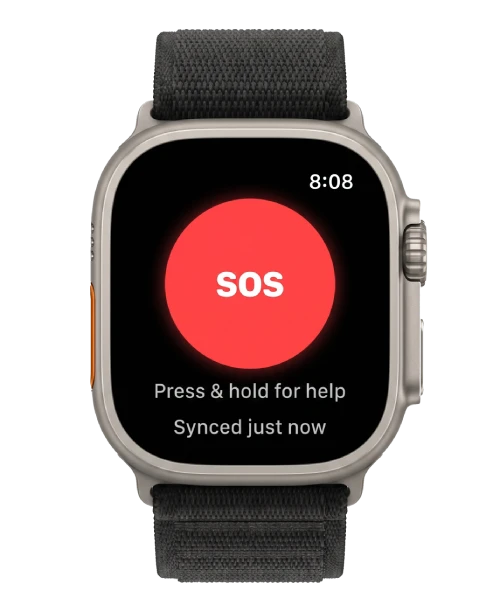
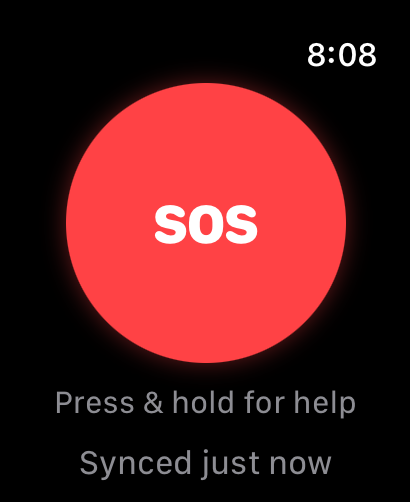
A single button. Help on the way.
Press & hold the SOS button on your wrist and AssureOkay notifies your emergency contacts by email and SMS. No PIN. No menus.
- Big, glanceable target. Works with shaky hands.
- Synced with your AssureOkay account in real time
- Independent of your iPhone (cellular models)
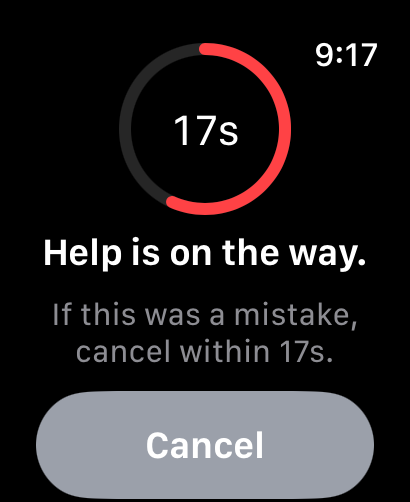
Tapped by accident? You've got time to cancel.
Every SOS starts with a short countdown so phantom taps from a sleeve or a pocket never become a false alarm. Cancel within the window and nothing is sent. Let it complete and your contacts are notified.
- Visible countdown ring on the watch
- Haptic feedback so you feel it without looking
- One big Cancel button
Your watch checks you in. Just by wearing it.
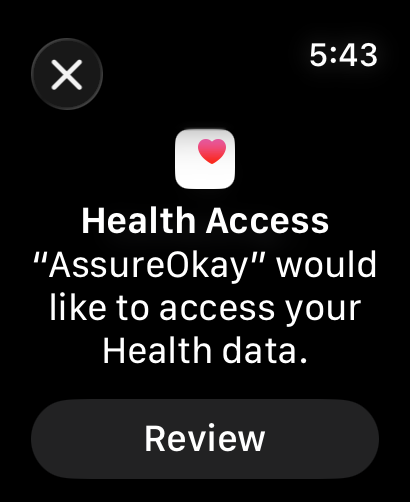
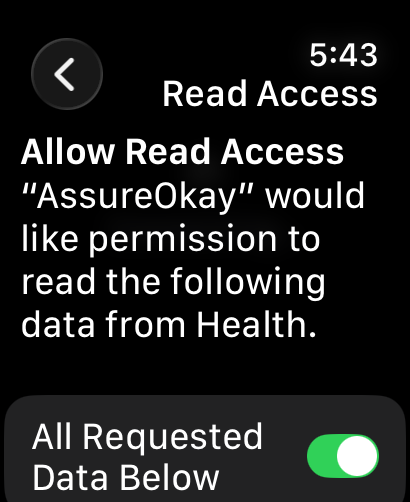
AssureOkay reads recent step counts and heart rate samples from Apple Health to confirm you're up and moving. If your watch has logged either in the last few hours, that counts as a check-in. No tap required.
Privacy first. Health data is read on your device through Apple's HealthKit. AssureOkay only sees the signals you explicitly allow, and only uses them to mark you as checked in.
- Granular permissions: you pick what to share
- Read-only access: AssureOkay never writes to your Health data
- Toggle off any time from Settings → Health
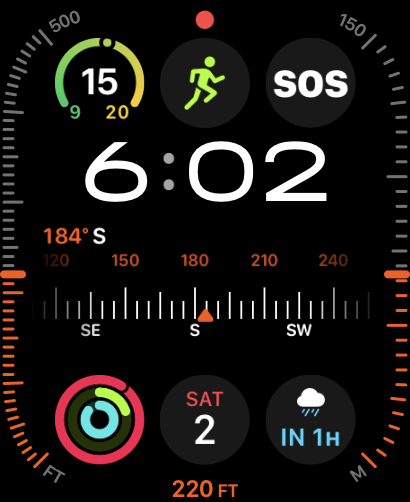
SOS on your favourite watch face.
Add the AssureOkay complication to any modern watch face on watchOS 10 or later. The SOS button is always one tap away, right next to the time.
- Four accessory sizes: circular, corner, rectangular, inline
- Tap-target sized for the watch face — no fumbling
- Also appears in the Smart Stack on watchOS 10+
Recommended: add the complication to your active watch face. watchOS gives apps with a complication on the current face more background runtime, which means auto check-ins and SOS sync run more reliably and your status stays fresher.
More reasons to wear it
Built for everyday life
Battery friendly
Auto check-in piggybacks on data Apple Health is already collecting. No background polling, no surprise drain.
Wide compatibility
Works on Apple Watch Series 4 and later, including SE and Ultra. Requires watchOS 10 and iOS 17 or newer.
Cellular ready
On a cellular Apple Watch, SOS works even when your iPhone is in another room or out of range entirely.
Same contacts everywhere
Your emergency contacts and alarm escalation are shared across web, iPhone and watch.
No nagging
When activity confirms you're fine, scheduled check-in reminders quietly skip themselves. Less buzz, same safety net.
No extra cost
The Apple Watch app is included with every AssureOkay account, with no separate purchase needed.
Frequently Asked Questions
Everything you might want to know before pairing your watch
How do I add the AssureOkay complication to my watch face? (recommended)
We strongly recommend pinning AssureOkay to your main watch face. In an emergency you won't have time to scroll through apps — with the complication, SOS is one tap away from the time. Without it, you'd have to find AssureOkay in the app grid, which is exactly what you don't want when seconds matter.
How to add it:
- Press and hold your current watch face, then tap Edit.
- Swipe left until you see the Complications screen.
- Tap any complication slot, then scroll to AssureOkay and select it.
- Press the Digital Crown to save, then tap the face to apply.
AssureOkay supports all four modern complication sizes (circular, corner, rectangular and inline), so it fits on any watch face on watchOS 10 or later.
Do I need an Apple Watch to use AssureOkay?
No. AssureOkay works fully on iPhone, Android and the web. Daily check-ins, emergency contacts, AI phone check-ins and the digital will are all available without a watch. The Apple Watch app is an optional companion that adds one-tap SOS and passive auto check-in.
Which Apple Watch models are supported?
Apple Watch Series 4 and later, including SE (1st & 2nd gen) and every Ultra model. You'll need watchOS 10 or newer paired with an iPhone running iOS 17 or newer.
How is this different from Apple's built-in Emergency SOS?
Apple's Emergency SOS calls local emergency services (911, 112, 999, etc.). AssureOkay's SOS notifies your chosen emergency contacts (family, friends, neighbours) by email and SMS. You can use both side by side; they solve different problems.
What does AssureOkay actually see in my Health data?
Only what you grant. The HealthKit prompts on your watch let you toggle two data types: step count and heart rate. AssureOkay reads them on-device to confirm you're active; it never writes to your Health data and you can revoke access any time from Settings → Health → Apps → AssureOkay.
How does the auto check-in actually work?
When your check-in window opens, AssureOkay looks at the most recent step count and heart rate samples from Apple Health. If either shows activity in the relevant time window, you're checked in automatically. If nothing is detected, you'll get a normal reminder to confirm manually.
Will it drain my watch battery?
No measurable drain in normal use. AssureOkay does not poll sensors directly; it reads cached Health summaries that your watch is already tracking, and only when a check-in window is active.
What happens if I tap SOS by accident?
Every SOS starts with a visible cancel countdown and a haptic buzz. Tap Cancel on the watch within the window and nothing is sent. Even after the countdown completes, you can mark yourself safe from your phone or the web to stop alarm escalation immediately.
Does it work without my iPhone nearby?
On a cellular Apple Watch, yes. SOS sends, check-ins sync, and complications stay live wherever you have signal or Wi-Fi. On a GPS-only watch, you need your iPhone on the same network for SOS to leave the device.
Can I add the AssureOkay button to a watch face?
Yes. AssureOkay ships in all four modern accessory complication sizes (circular, corner, rectangular and inline), so you can pin SOS to any complication-supporting watch face on watchOS 10 or later. It also appears in the Smart Stack so you can swipe up from the time and tap.
The AssureOkay app isn't showing up on my Apple Watch — what should I do?
Try these in order — the first two resolve almost every case:
- Make sure you have the real iOS app, not the website saved to your Home Screen. The Apple Watch companion only ships with the native app from the App Store. If you added AssureOkay to your Home Screen from Safari (a "web app" or PWA), there is no Watch app to sync. Open the App Store on your iPhone, search "AssureOkay" and install it from there, then sign in with your existing account.
- Open the Watch app on your iPhone, tap My Watch, scroll to AssureOkay and make sure Show App on Apple Watch is on. If AssureOkay isn't listed, scroll to Available Apps at the bottom and tap Install.
- Install directly from the watch. On the Apple Watch itself, open the App Store, search "AssureOkay" and tap install. This bypasses the iPhone sync entirely and is the fastest way to confirm whether it's a sync glitch or an account issue.
- Check your Apple Watch storage. On the watch: Settings → General → Storage. If it's nearly full, companion apps fail to install silently.
- Confirm your iPhone and Apple Watch are signed in with the same Apple ID and use the same App Store region. Different IDs or regions stop apps syncing across.
- Force restart both: on the watch, hold the side button + Digital Crown until the Apple logo appears; on the iPhone, press Volume Up, then Volume Down, then hold the Side button until the Apple logo appears.
- Last resort: unpair and re-pair the watch (Watch app → All Watches → ⓘ → Unpair). It restores from backup so you won't lose data.
After installing, open the watch app once on your wrist so it can sign in. Enabling General → Automatic App Install in the Watch app means future updates roll out to the watch automatically.
Is the Apple Watch app a paid add-on?
No. The Apple Watch app is included with every AssureOkay subscription at no extra cost, on both Base and Plus. Install it from the Watch app on your iPhone and sign in with your existing AssureOkay account.
Ready to put safety on your wrist?
Start with a free AssureOkay account, install the Apple Watch app, and you're seconds away from one-tap SOS.